In this implementation, the image hosting operations are executed on an ArcGIS Image Server site configured as the image hosting server. The ArcGIS Image Server site does the work of processing requests, storing the results, and returning results to members in the Portal for ArcGIS site.
A diagram of the minimum image hosting system is shown below.
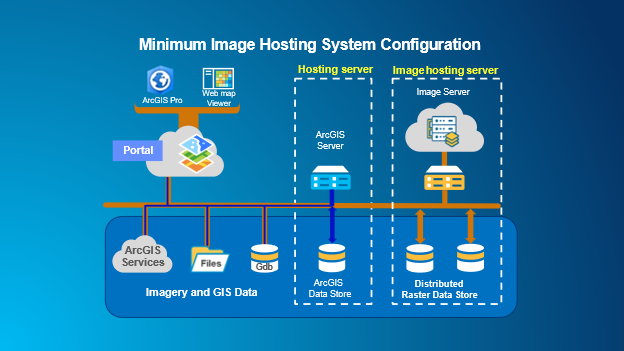
The image hosting server requires an ArcGIS Image Server license.
The instructions to set up and configure the image hosting system are outlined below.
Setup a minimum image hosting system
The following instructions may require changes to the way you've deployed ArcGIS in your organization; review them carefully before proceeding. To configure the portal to perform image hosting services, follow the steps below.
- Ensure that you have configured a base ArcGIS Enterprise deployment.
- Set up an ArcGIS Image Server.
- Install an additional ArcGIS Server site.
- Authorize ArcGIS GIS Serverwith an ArcGIS Image Server license to function as the ArcGIS Image Server site.
- Begin configuring ArcGIS Image Server by signing in to ArcGIS Server Manager and browse to Site > Data Stores.
- Register the raster data store with ArcGIS Image Server.
Raster analysis services store processed rasters in a data store, referred to as raster store. This can be either of the following:
- File share type of raster datastore—In this configuration, both the analysis output and the mosaic dataset will be stored at the file share raster store.
- Cloud store with file share type of raster datastore—In this configuration, the analysis output will be stored at the cloud raster store and the mosaic dataset will be stored at the file share raster store.
- Cloud store with enterprise geodatabase types of raster store—In this configuration, the analysis output will be stored at cloud raster store and the mosaic dataset will be stored at the enterprise geodatabase raster store.
Tip:
This type of configuration is recommended for better scalability for hosted imagery layers.
Note:
If you want to add a raster analytics deployment to your existing image hosting deployment, the same raster store name with same path or connection details need to be registered in both your image hosting server and raster analysis server sites.
If the input data is accessed from your data stores, those data stores should be registered in both the raster analysis and image hosting servers.
- To use a folder, use ArcGIS Server Manager, register a UNC share in the data store, and give it a name.
Note:
If there are multiple instances of _raster_store defined, for example, raster_store1, raster_store2, and so on, raster analysis will randomly pick one for a task request.
- To use a cloud store, provide the access key, secret access key, region, and bucket name. The cloud store settings include subfolder support.
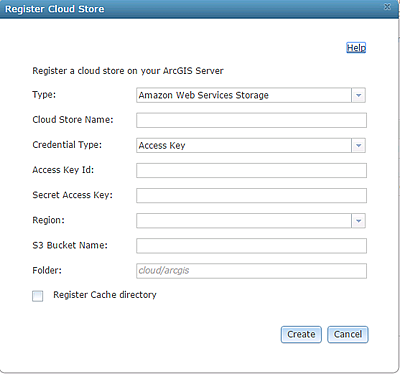
Note:
To use a cloud store as a raster store, the ArcGIS Server account user must have read, write, and delete permission on the cloud bucket to properly manage the data.
- Ensure that you have increased the SOC maximum heap size to 128 MB for ArcGIS Image Server.
Note:
To deploy your image hosting server in the cloud with Amazon Web Services (AWS), see ArcGIS Enterprise Cloud Builder CLI for AWS. To deploy your image hosting server in the cloud with Microsoft Azure, see Deploy ArcGIS Enterprise on Microsoft Azure.Federate and configure the server for image hosting
Next, you will designate the ArcGIS Image Server site to host your imagery layers.
- Sign in to the portal as a member with administrative privileges. The URL is in the format https://webadaptorhost.domain.com/<webadaptorname>/home.
- Browse to Organization > Settings > Servers.
- Federate your ArcGIS Server site.
- On the Servers page, locate the ArcGIS Image Server site that you federated with the portal.
- Open the Configure server role dialog by doing one of the following:
- Next to Server role, click the current server role or Configure server role if no role is currently assigned.
- Click the More options button
 and select Configure server role.
- On the Configure server role dialog box, enable Image Hosting Server.
- Click Save.
- Assign the minimum permissions needed to host imagery layers.
- Ensure that you have increased the SOC maximum heap size to 128 MB for ArcGIS Image Server.
Assign permissions
Next, you will assign the minimum permissions needed to host imagery layers.
- Browse to the Organization > Settings > Member roles page.
- Next to the role that will be hosting imagery layers, click the More options button and select Edit or create a new role if required.
- In the Edit or Create role window, expand Content.
- Enable the options for Create, update, and delete and Publish hosted dynamic imagery layers.
- Optionally, enable Register data stores to connect user-managed data stores from your organization and publish imagery layer.